
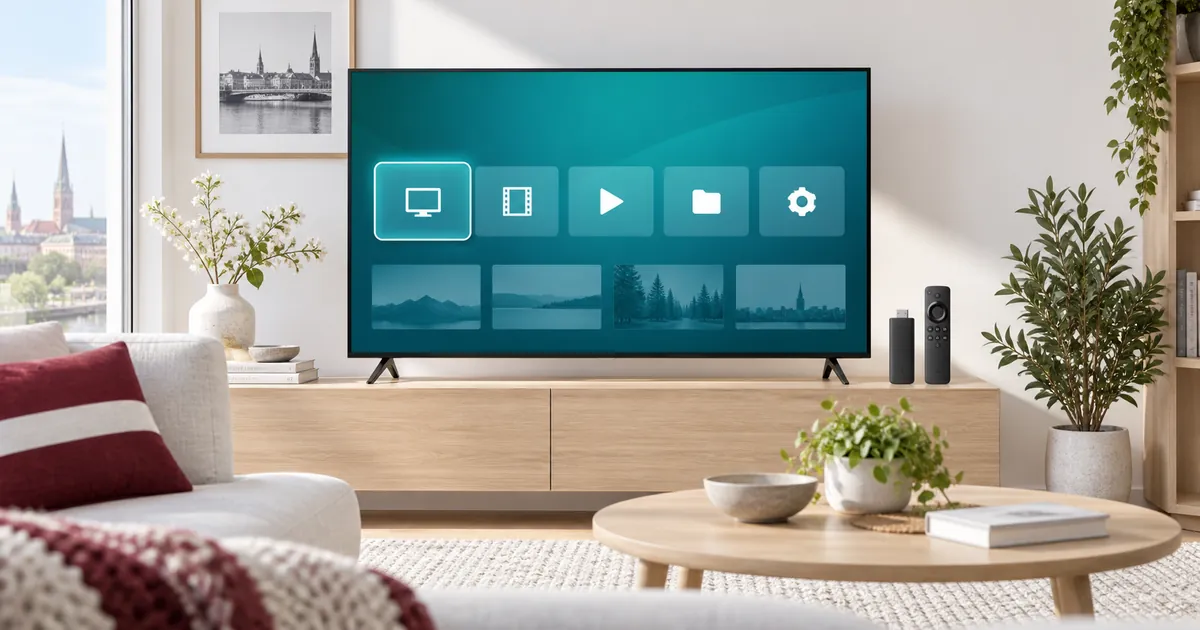
Three things your television needs
- A compatible IPTV player available for your exact television or connected streaming device.
- An internet connection that remains stable where the television is installed.
- Subscription details or player activation instructions supplied by the IPTV Latvia team.
Installing a player does not by itself supply a subscription. Likewise, submitting an order does not automatically install an app on your TV. Treat the app, its possible licence and your IPTV access as separate pieces of the setup. This distinction prevents many activation misunderstandings.
Have the television model number and the exact app name ready before contacting support. A photo of the app’s welcome screen may help, but do not publish credentials or device keys in a public forum.
Samsung Smart TV: check the Apps section
Use your television’s Apps interface to search for a supported player. App compatibility and menu names can vary by TV model, software and region. If the requested player is not listed, do not assume another similarly named app is an equivalent substitute.
Samsung explains how to find and install available applications in its official app installation guide. Check availability on your actual television, then tell the activation team which player you can open. If the app is not supported, ask about another player or a compatible external streaming device before buying new hardware.
LG Smart TV: use the available webOS apps
On a supported LG television, look for the player through the LG Content Store or Apps area provided by that model. Availability can differ between webOS versions and regions. A player that appears in an online tutorial may not appear on your particular television.
LG’s Content Store support guide explains the official installation route. Once installed, open the app and note the exact name and any setup identifier it displays. Ask support to confirm compatibility rather than assuming all LG models use the same instructions.
Android TV and Google TV: choose a TV-compatible player
Use the app store available on your Android TV or Google TV device to find a compatible IPTV player. Prefer a version intended for television navigation with a remote. A mobile application with a similar name may not provide the same TV controls or compatibility.
For Google TV, the official app installation instructions explain how to search for and install available apps. Follow the store’s supported route, and avoid unverified downloads claiming to be a required subscription update. If using a separate streaming box, share that box’s model with support as well as the television model.
Hot Player, Hot IPTV and IBO Player
Hot Player
Check the precise app and device version with support. Premium advertises a Hot Player / IBO lifetime activation offer, but eligibility and activation terms need to be confirmed for your setup.
Hot IPTV
Treat this as its own app option. Do not assume the Hot Player activation offer applies to Hot IPTV simply because the names are similar. Confirm how this player accepts your subscription.
IBO Player
Check the exact player name and supported platform. Where the app uses a device ID or device key, share it only through the support channel requested for activation.
Applications belong to their respective developers. IPTV Latvia is not presented as an official Samsung, LG, Google or player-developer partner. Availability, licensing and features can change. The existing app overview lists additional options to discuss with support.
A practical installation and activation sequence
- Confirm compatibility. Send your TV model, operating system if known, and intended player name to support.
- Install from the official source. Use the supported app store or verified developer instructions for that device.
- Open the player. Identify whether it needs login details, a playlist, or device-ID activation. Do not guess between these methods.
- Submit your plan request. Choose the duration, quality level and simultaneous connections in the existing pricing component.
- Follow the team’s instructions. Supply a device ID privately if that app requires one, or enter the supplied subscription credentials carefully.
- Test before completing payment. Check playback and remote controls, then follow the payment instructions after setup.
Keep the order number alongside your app name when asking for help. The general setup guide covers the wider service process without replacing model-specific app instructions.
Choose Standard or Premium for your screen
Standard offers Full HD viewing options on compatible setups. Premium adds available 4K UHD content and its advertised extra features. Both still require a player your television can run. A 4K TV does not mean every channel is delivered in 4K, and the higher plan does not make an unsupported app compatible.
Count how many screens will stream together. One TV by itself uses one active connection. A second viewer streaming on a phone at the same time needs an appropriate multi-connection selection. Compare the choices in the subscription guide or read the Premium feature explanation.
If your TV does not play correctly
First distinguish an app-installation problem from a subscription-login or playback problem. Note the exact error, check the details entered, and tell support whether the issue affects every stream or only one. Check that another device is not already using your available connection.
Do not factory-reset the television or purchase repeated licences as your first response. Those actions may remove a working configuration without solving the cause. Ask for setup assistance with your order number, TV model and app name. When ready, the ordering guide leads into the existing subscription flow.
Your questions answered
Will the service work on every Samsung or LG television?
No universal model guarantee is implied. Check whether your exact TV, software and region support a suitable player before choosing a subscription.
Which app should I install first?
Confirm your television model with support and check its official app store. Use the exact player recommended for that setup, not just a similarly named result.
Should I send my device ID publicly?
No. If the selected player requires a device ID or key for setup, share it privately through the support channel requested by the team. Never post account passwords publicly.
Is Hot IPTV the same as Hot Player for activation?
Do not assume so. Confirm the exact app and whether its licence or activation is included in your selected offer. Similar names do not establish interchangeable licences.
What if my TV cannot install the recommended player?
Ask support about an alternative compatible player or external streaming device. Confirm suitability before buying hardware or paying for another app.
Get your Smart TV ready
Confirm your player, choose the plan that fits your screen, and let the activation team guide the remaining setup.