
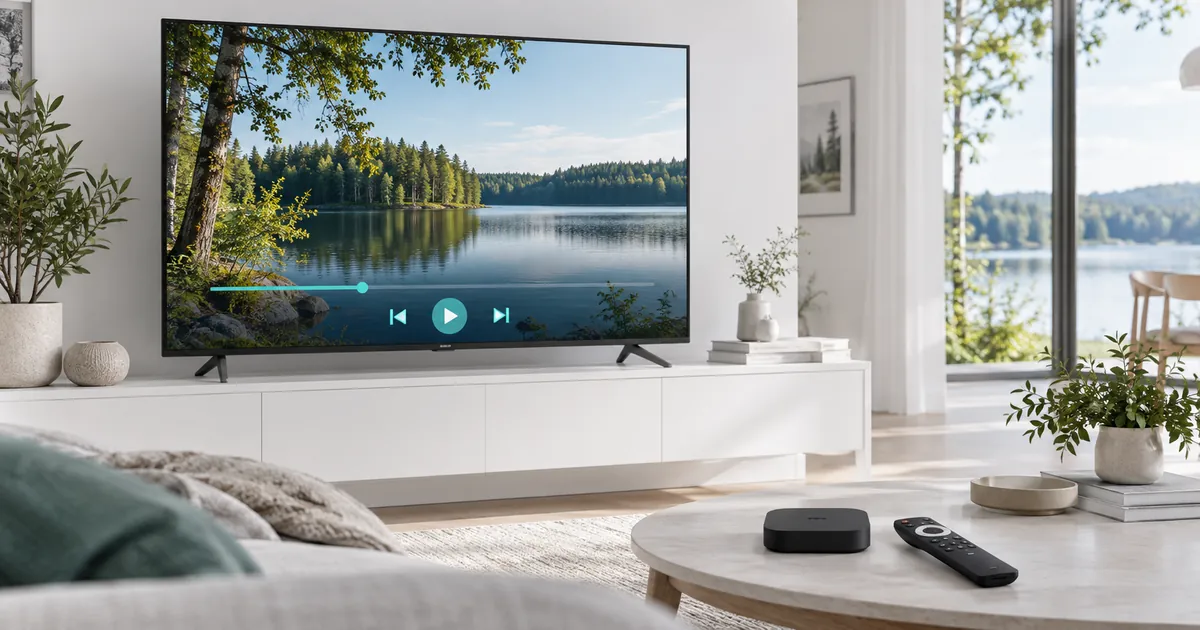
Distinguish Android TV from a generic Android device
Android TV is a television-focused platform, while some boxes use a different Android interface. That distinction affects app availability and how comfortably a remote operates the player. A product listing that simply says Android does not identify the entire software environment.
Record the device model, operating system and installed store. If you own a generic box rather than a television-focused device, use the Android Box guide. For a device presenting the Google TV interface, the Google TV guide explains its app-discovery route without treating the two home screens as identical.
Choose an app built for remote navigation
TiviMate is one option to evaluate on compatible Android TV hardware. Its publisher’s Google Play listing describes an Android TV player designed around remote navigation and states that it does not supply TV sources. Our TiviMate setup guide keeps that player decision separate from subscription selection.
Search through the supported device store and verify the publisher before installation. Do not assume that a similarly named mobile app is the television version you intended. A player that requires frequent touch gestures can be awkward with a directional remote even when the installer accepts it.
Make a short device-readiness check
- Confirm that the device starts normally and its remote can navigate the home screen.
- Check the internet connection in the room where it will be used.
- Review available storage before installing or updating the agreed player.
- Keep the model, software version and player name with your private setup notes.
If the device is connected through HDMI, verify that the correct input is selected before investigating app problems. A blank television input and a failed IPTV sign-in are different failures. Resolve basic display and network access first so that the subscription check happens on a stable, understandable starting point.
Load the access format supplied for your player
The team will confirm the appropriate account details or playlist method for the chosen application. Enter those values exactly in the relevant fields. Do not rearrange a server address, append guessed paths or substitute credentials from an unrelated player account. When unsure, ask which field receives which value.
A player’s paid upgrade, if offered, unlocks that player’s features under its own terms. It does not purchase IPTV content. Conversely, a subscription does not mean every optional player feature is licensed. Keep the application account and television-service account distinguishable, especially if different email addresses were used for them.
Organise viewing after the first successful stream
Once access is confirmed, check the programme guide and the categories you actually use. Add a small set of favourites instead of reorganising the entire list immediately. Verify that your remote can return from playback to the guide and that important audio or subtitle controls are accessible where the source provides them.
Test the routine used by the least technical viewer in the household. If opening the correct app requires several confusing steps, ask how to simplify the normal route without changing account settings. Keep a note of which player is configured so a second family member does not accidentally launch another unconfigured application.
Compare plans using the same connection count
The Standard and Premium comparison explains the existing offer. Compare like for like: the same duration and simultaneous connection count. A monthly equivalent is an average over the selected period, not an alternative billing schedule. Review the full total before sending your subscription request.
An Android TV device may support high-resolution output, but usable picture quality also depends on the supplied source, player and network. Not every programme is available in 4K. If this television and another screen must play independently at the same time, choose enough simultaneous connections rather than assuming a second installed app adds capacity.
Troubleshoot the layer that is actually failing
When a problem occurs, identify whether the store, player launch, account import or playback is failing. If only one programme fails, say so. If every stream fails after a software update, record the update and error message. Avoid uninstalling the working player until you know how its saved settings and access can be restored.
Use the device hub when considering a replacement. No single Android label guarantees support for all apps and features. The guide is independent setup information, not Google certification or endorsement of IPTV Latvia, and support should confirm your actual device before you purchase additional hardware.
Your questions answered
Is every Android box an Android TV device?
No. Some use a different Android interface. Identify the actual platform and store before following television-specific installation instructions.
Does TiviMate provide the subscription channels?
No. It is a player, and its publisher says TV sources must be supplied separately. Confirm the appropriate account configuration with the activation team.
Why does an installed app feel awkward with my remote?
It may be designed for touch interaction rather than television navigation. Evaluate a supported TV-oriented player before committing to that setup.
Should I personalise everything before account access is confirmed?
First verify normal playback and guide navigation. Then organise favourites so you do not spend time configuring an account that has not been checked.
What information helps after an Android TV update?
Provide the device model, player version, update timing and exact symptom. Explain whether the player opens and whether one or all programmes are affected.
Build around a working Android TV player
Confirm your device and app, then compare Standard or Premium with the duration and simultaneous connections you require.