
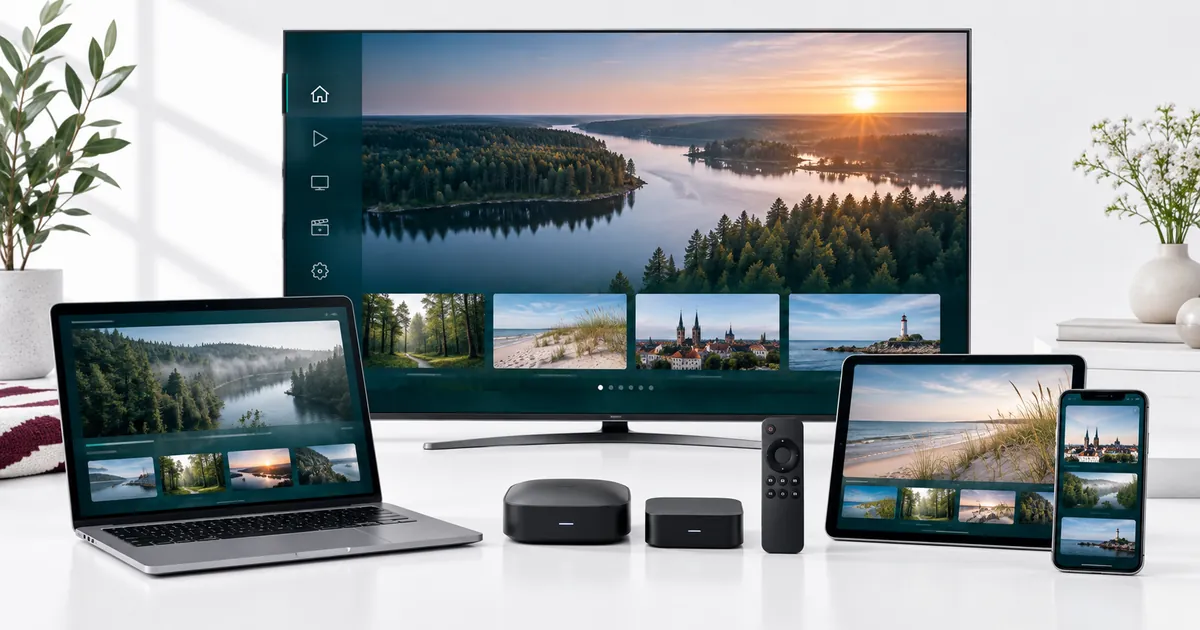
Identify what actually runs the player
Start with the exact model and operating system. A television connected to an external streaming box is usually displaying the box’s output; the television’s own app store may have no role in that setup. Record both devices if you are unsure, along with the player name shown on screen.
Compatibility can vary by model year, software version and store region. A recommendation for one television from a manufacturer does not prove the same app exists on another model. Ask about the precise device you own before buying additional hardware or paying for a third-party player licence.
Smart TVs: check the television’s own platform
Samsung and LG televisions use different software platforms from Android-based televisions. Look for a supported player in the relevant store and confirm its requirements for your model. The Smart TV setup guide covers the distinction between installing an app, activating that app where required and configuring IPTV access.
Check everyday operation as well as installation. Can the viewer move through categories, return to the guide and read subtitles comfortably? If the television cannot run a suitable player, an external device may be an option, but confirm the proposed combination before purchasing it. Avoid assuming an old television becomes compatible through a subscription change.
Android TV, Google TV and streaming boxes
Identify whether the box runs a television-focused platform or a different Android interface. App availability and remote-control behaviour can differ. A player designed around touch controls may be inconvenient with a simple remote even if it can be installed.
Fire TV and Apple TV are also distinct device families, not interchangeable names for the same system. Confirm a currently supported player for the exact platform and account region. Use legitimate distribution and setup instructions, and ask support before installing unfamiliar software or entering subscription credentials into an unverified application.
Phones and tablets for personal viewing
On mobile devices, check the operating system version and available player before entering account details. Confirm that guide navigation, full-screen playback and any required audio controls work comfortably. A phone used briefly for setup is not necessarily the screen on which you want to watch a full programme.
If you intend to cast or mirror to a television, treat that as a separate compatibility question. Successful playback on the phone does not establish that the player supports your casting receiver or that all controls transfer correctly. Explain the intended phone-to-TV route to support instead of describing only the phone model.
Computers and the player choice
Windows and Mac computers need a suitable playback application or another explicitly supported access method. Do not assume a browser portal is included simply because the computer can open websites. Our IPTV apps guide can help you understand the role of the player; confirm the particular app and version before committing to it.
Keep player licensing separate from subscription access. An installed application may open without having an active IPTV account, and a valid subscription does not automatically cover every third-party app fee. If you already own a player licence, tell support which one so the proposed setup can take it into account.
Check picture quality through the whole setup
A 4K display is one part of the playback chain. The programme source, player, streaming device and connection must also be suitable. Read the 4K viewing guide before choosing Premium solely because a screen carries a UHD label. Available source quality varies, and not every programme is native 4K.
Test in the room where the screen will normally be used. A reliable connection near the router does not prove the same result behind several walls. If a single device struggles while another works, record that distinction. It helps support separate a local connection or player issue from a broader account or source problem.
Prepare each device, then test simultaneous use
Follow the existing setup instructions for the agreed player and keep credentials private. Configure one screen first and confirm ordinary playback before adding the next. This makes it easier to identify the source of an error instead of troubleshooting several incomplete configurations at once.
Use the multi-device guide to choose simultaneous connections. Owning five compatible devices does not require five streams if you only use one at a time. Conversely, installing the app on several screens does not remove the selected connection allowance. Check the busiest normal viewing overlap before choosing the plan.
Your questions answered
Is every Smart TV compatible?
No blanket guarantee applies. Compatibility depends on the exact model, operating system, available player and relevant software requirements.
Which model should I provide if I use a streaming box?
Provide the box model and platform, the player name and, where relevant, the connected television model. The box may be responsible for playback.
Does a working phone stream prove casting will work?
No. Casting or mirroring adds another device and software path. Confirm support for your intended receiver and player combination.
Is a third-party player licence the same as my subscription?
No. Player activation and IPTV subscription access are separate. Ask which app licensing, if any, is included in the selected offer.
Can several compatible devices all stream together?
Only within the selected simultaneous connection allowance and applicable account conditions. Choose connections based on actual overlapping use.
Match the plan to a confirmed setup
Confirm your device and player first, then compare the existing subscription options with the connection count you need.