
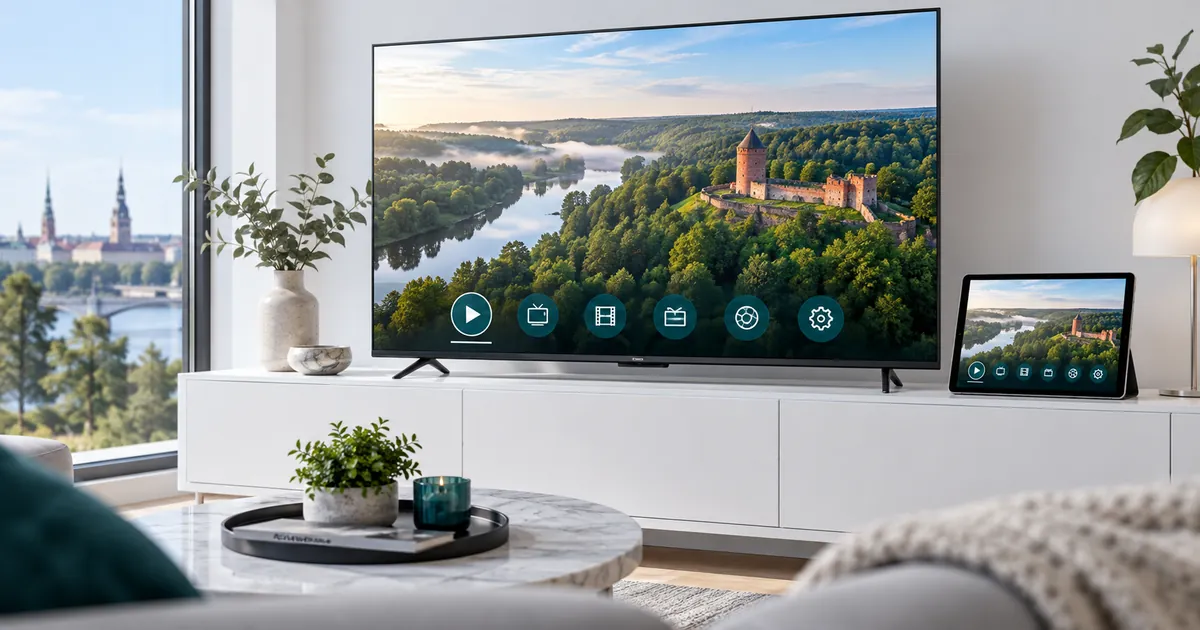
Understand what your Smarters app actually supplies
A media player organises and plays the content connected to it; installing one does not activate an IPTV subscription. An empty home screen after installation is therefore not, by itself, a fault. You still need the appropriate service details and an active account. An app upgrade and a subscription upgrade are also separate purchases.
The Smarters Pro publisher explicitly distinguishes its player software from content subscriptions. Similar app names can be confusing, so check the publisher and version rather than choosing an app solely because its icon or search result looks familiar. This is independent setup guidance, not a claim of affiliation.
Confirm compatibility before entering account details
Write down the television or streaming device model, operating system and exact app name. Store availability and login screens differ between devices; instructions for a phone may not match your television. The compatible-device guide helps you choose the appropriate route before committing to a plan.
Open the installed player and check which account types it actually accepts. Do not install an unverified replacement merely to match a screenshot from an older tutorial. If you cannot find the recommended app in your device store, ask support for a compatible alternative and explain which device you have.
Match the login method to the details you receive
Some setup screens ask for separate service credentials; others accept a supplied playlist address. Use the method specified with your activation details. A label such as account name may simply identify the profile locally, while username, password and server fields must match the issued values. Do not invent a server address or borrow one from a public guide.
Copy carefully, avoiding spaces before or after a value. Preserve punctuation, capitalisation and any supplied port. Keep these details private: a playlist link can contain account credentials. When requesting help, describe the field that fails and redact sensitive parts of screenshots rather than publishing the complete login.
Load the account and test one function at a time
After the account is accepted, allow the initial content list to finish loading. Open one available live item, then check audio and normal remote navigation. If your subscription includes an on-demand library, test a separate item there as well. This distinguishes a general login issue from a problem affecting just one category.
Programme information is a separate check. A working stream can have missing schedule data without the entire installation being broken. Read how the electronic programme guide works before repeatedly deleting and re-adding an account to solve an empty guide. Note exactly what works and what does not.
Choose the subscription independently of the player
Compare the current Standard and Premium plans by duration, included features and simultaneous connections. The number of devices with an app installed is not necessarily the number permitted to stream together. If a television and a tablet will play at the same time, select the appropriate connection option rather than relying on multiple saved profiles.
A premium-labelled button inside the player does not automatically upgrade IPTV Latvia. Conversely, a Premium IPTV Latvia subscription does not establish that every paid feature of a third-party player is included. Confirm both scopes before paying for an additional app licence or requesting a subscription change.
Troubleshoot without losing a working setup
For a rejected login, verify the issued details and subscription status first. For an account that loads but will not play, record the affected item, error message, device and approximate time. Check whether the same failure occurs on another included item. Avoid changing the network, player and account simultaneously, because that makes the cause harder to identify.
If a reload is recommended, retain your activation instructions before removing any profile. A restart and a content refresh are different actions; choose the one relevant to the problem. Never share account passwords in an open forum, and do not grant remote access to an unknown person offering an instant fix.
Prepare a useful support request
Use IPTV Latvia support with the app name, device model, visible error and the stage at which setup stops. Mention whether the account list loads and whether audio or video starts. Those details are more useful than simply reporting that Smarters does not work.
For a new installation, follow the broader setup sequence before testing advanced features. You can also request a compatibility check before choosing a longer subscription. Keep a record of the confirmed settings so that a later device replacement does not require reconstructing the entire setup from memory.
Your questions answered
Does installing IPTV Smarters give me an IPTV Latvia account?
No. Installing a player and activating a subscription are separate steps. Use the account details issued for your service; a player download alone does not supply them.
Should I choose a playlist or username login?
Choose the method that matches your activation instructions and the options in your exact app. Ask support if the supplied details do not fit the screen.
Why are channels visible but the programme guide empty?
Content and schedule data can load separately. Check the guide settings and availability for that channel before removing an otherwise working account.
Can I enter my account on a second screen?
Check the permitted connections and device arrangement first. Saving an account on another device does not increase the simultaneous-stream allowance.
Is an in-app premium upgrade the same as IPTV Latvia Premium?
No. The player licence concerns app functionality; the IPTV Latvia plan concerns your service. Verify each separately.
Get the player and plan working together
Choose a subscription that fits your screens, then use the confirmed setup details for your particular Smarters installation.