
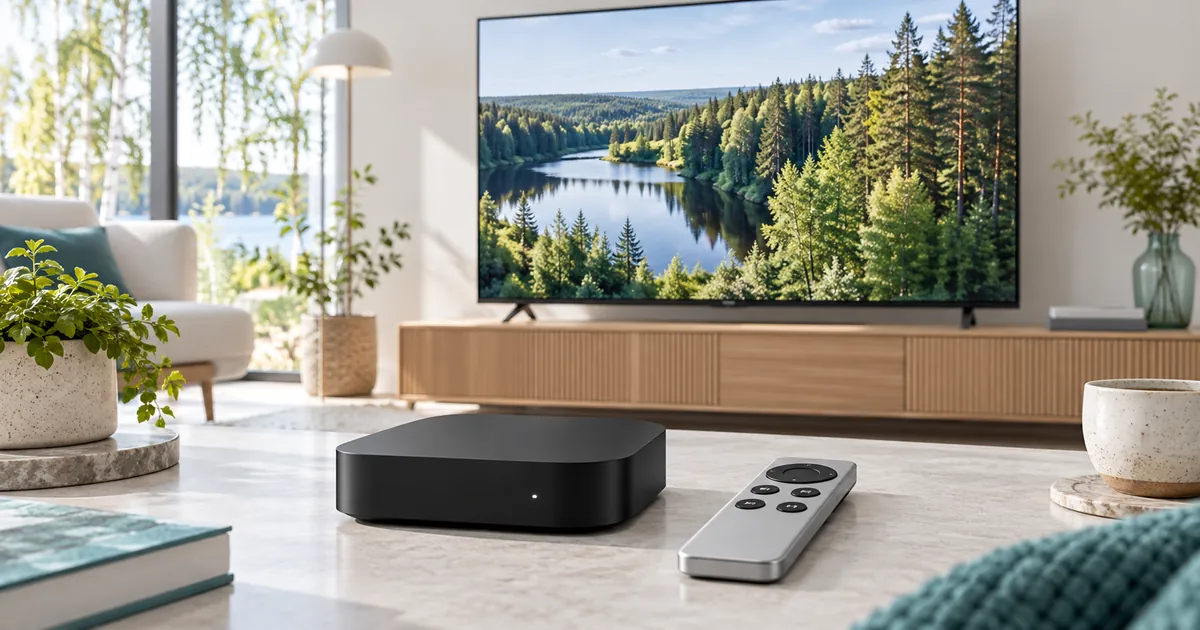
Identify the box, not just the Apple TV name
Apple TV can refer to hardware or an application found on other devices. This guide concerns a compatible Apple TV streaming box connected to a television. Seeing the Apple TV app on a Smart TV does not mean that television can install tvOS applications or use the same IPTV setup instructions.
Apple’s app download guidance covers Apple TV 4K and Apple TV HD and notes that older third-generation hardware does not have the same App Store download route. Check your model before comparing players. This is independent guidance, not an Apple-endorsed subscription or partnership.
Choose a tvOS listing deliberately
Open the App Store on the supported box and examine a player’s listing for device and software requirements. Confirm the publisher, supported access formats and any purchase conditions. An iPhone app with a familiar name is not automatically available on Apple TV, and a desktop player cannot be installed merely because both devices are made by Apple.
Ask the activation team which currently supported tvOS player fits the access they provide. Do not buy several applications to discover compatibility by trial and error. Keep a note of the exact player selected so support can give instructions for the interface actually on your screen.
Separate Apple accounts from service credentials
The Apple account used for store downloads and purchases is not your IPTV login. A player may also have its own optional account or paid upgrade. Read the label on each sign-in screen before entering information, and never give support your Apple account password to configure a subscription.
Where payment for a third-party app is required, confirm what the purchase unlocks and whether it applies on the box you intend to use. App licensing, IPTV duration and simultaneous connections are independent decisions. A receipt for one should not be taken as proof that the other two have been supplied.
Check the remote and living-room experience
After installing the agreed player, test selection and returning to the guide with your own remote. A polished interface is useful only if the household can operate it reliably. Try navigating a longer list and locating a favourite without assistance. Ask about audio and subtitle controls on programmes that actually include those options.
If text is hard to read from the sofa, examine the player’s available display preferences rather than moving immediately to another subscription tier. Screen size, viewing distance and app design affect usability. Do not assume a larger catalogue will make an inconvenient navigation system easier to use.
Complete setup in a clear order
- Confirm the box model and available tvOS player.
- Check basic network and HDMI playback before entering subscription information.
- Submit the desired plan and provide a reachable email address and phone number.
- Use the team’s exact account details in the fields intended for that access method.
The subscription request guide explains the existing ordering process. A request confirmation is not proof that the player is configured. Test an ordinary programme once the team has prepared access, then confirm the account period and keep the order reference somewhere private.
Do not confuse AirPlay with native app playback
A phone sending video to another device is a different route from a player running directly on the Apple TV box. See the phone and tablet guide if that is your intended workflow. Confirm compatibility between the actual sending app and receiver instead of assuming that one successful mobile stream proves everything works on the television.
For a native box setup, the television acts as the display. For a casting or mirroring setup, another device may be responsible for starting playback and maintaining the session. Explain that distinction to support when describing interruptions, missing controls or an image that appears only on the phone.
Choose subscription features that the setup can use
Compare the Standard and Premium options without treating the box’s 4K branding as a promise about every programme. The UHD viewing guide explains why the source and player matter alongside the display. Select the duration and simultaneous connection count separately.
If you are moving from another device, consult the device hub and identify whether you are replacing a screen or adding simultaneous viewing. Preserve the working account details until the new route is confirmed. Do not assume a previous player licence transfers between platforms or that a hardware upgrade automatically changes the subscription allowance.
Your questions answered
Does the Apple TV app on my television make it an Apple TV box?
No. The application and the separate streaming hardware are different. Check the device actually running your IPTV player.
Can older Apple TV hardware install current App Store players?
Not all models can. Apple’s download guidance distinguishes supported HD/4K boxes from older third-generation hardware without the same App Store route.
Should I share my Apple account password for setup?
No. IPTV setup does not require giving support your Apple account password. Use only the subscription or device information relevant to the selected player.
Is an iPhone player automatically available on tvOS?
No. Verify the application’s actual tvOS listing and requirements before purchasing or planning around it.
Does AirPlay support follow automatically from phone playback?
No. Confirm the sender app and receiver path separately. Native Apple TV playback and casting or mirroring are different setups.
Choose access for your confirmed tvOS setup
After checking the box and player, compare the existing plans and select the simultaneous viewing allowance your household needs.