
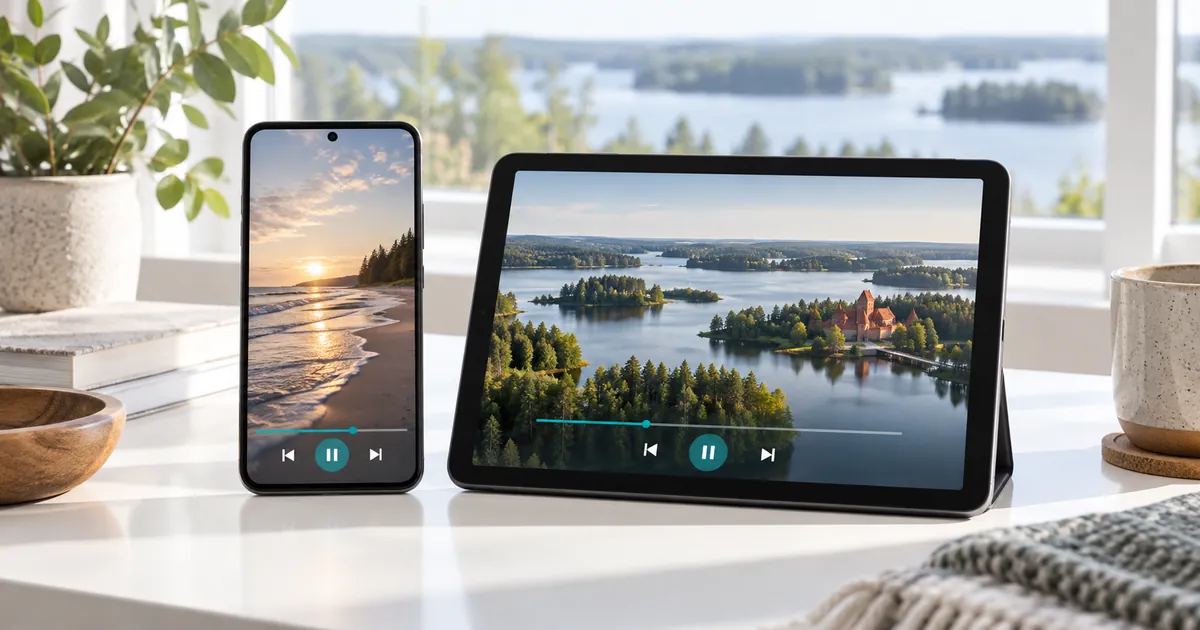
Start with the mobile platform and app listing
Identify whether the device uses Android, iOS or iPadOS and note its software version. Check the exact player’s store listing for supported devices before downloading. An app available on one platform may not exist on another, and a television version can have a different interface from a mobile version.
The device compatibility hub helps place your phone or tablet within the wider household setup. Ask support which currently supported mobile player accepts the provided access format. Avoid selecting an application only because its icon resembles a player already installed on your television.
Evaluate touch controls and screen comfort
Open the player and check how it moves between the programme list and full-screen video. On a phone, confirm that important controls are easy to reach without accidentally changing channels. On a tablet, try the orientation you expect to use most often and check that guide text remains comfortable to read.
Subtitles and audio selection depend on both the player and the source. A larger tablet cannot add a missing language track, and a subtitle switch cannot create text that was never supplied. Test a relevant programme rather than judging the app solely from a promotional screenshot or an empty start screen.
Make network and data use part of the decision
Streaming uses your network connection while it plays. If you use mobile data, check your carrier allowance and device data-use controls before a long session. Do not assume the subscription includes cellular data or that changing the IPTV plan changes your carrier’s limits.
Test in the place where you normally watch. A phone moving between rooms or networks may behave differently from a television that stays connected in one position. If playback changes when you leave Wi-Fi, record that detail. It helps distinguish an account problem from a change in local connection conditions without guessing at a universal speed requirement.
Keep account details safe on a portable device
- Install the publisher-verified player from an appropriate trusted source.
- Use a screen lock and keep subscription credentials out of public notes.
- Enter only the access details intended for the selected player.
- Avoid sharing screenshots that reveal a password, full playlist URL or device key.
If the phone or tablet is shared, consider who can open the app or view stored account information. A platform account used to download applications is separate from the IPTV account. You should not need to give support your Apple or Google account password simply to configure viewing access.
Count overlap with televisions and other screens
A tablet playing while the living-room television remains active creates simultaneous use. Our two-device guide covers that common pattern, and the multi-device overview explains allowances up to five. Count actual independent streams, not every phone in the household.
When switching screens, stop playback in the first player before starting the second if your allowance does not cover both. Do not assume that merely putting an app in the background always communicates the same playback state. If the service reports an unexpected connection limit, tell support which devices and applications were recently active.
Treat casting and external display use as a separate route
A stream working on a phone does not prove it can be sent to every television. The selected app, receiver and connection method must support the intended route. For an Apple TV receiver or box, see the Apple TV guide; for Google TV hardware, use the Google TV guidance.
Explain whether you want native playback on the receiver, casting from an app or simple screen mirroring. Those are different workflows with different controls. Confirm the desired arrangement before buying an accessory or assuming that the phone can act as a universal substitute for a television player.
Choose duration and quality after the mobile check
Compare the Standard and Premium features against what matters on your screens. Available UHD sources are not a promise that every mobile programme will display in 4K. Content availability, display capability and network conditions still matter. A comfortable interface and useful language controls may be more important on a smaller screen.
Select the subscription period and connection allowance in the existing pricing controls, then review the full total. If you also watch on a laptop, the Windows and Mac guide explains that separate player setup. Keep the order confirmation for support. If you replace or lose the mobile device, ask how to secure or restore access without posting account information publicly.
Your questions answered
Can I use the same app on Android and iPhone?
Only if the publisher supplies a compatible version for each platform. Check the actual listings and supported access formats rather than assuming the names match.
Does my IPTV subscription include mobile data?
No carrier allowance is implied. Check data usage and any applicable charges with your mobile provider before streaming over cellular service.
Does putting a player in the background always stop the stream?
Do not rely on that assumption. Stop playback explicitly when switching devices, especially if the plan does not cover overlapping streams.
Will every phone player cast to my television?
No. Confirm support for the exact app, receiver and connection method. Mobile playback alone does not establish casting compatibility.
What should I do if I lose a configured phone?
Use the device’s account-security options and contact support privately about the IPTV access stored on it. Do not publish passwords or playlist links while asking for help.
Choose access for the screens you actually use
Confirm your mobile player, then select the subscription duration and connection count that fit personal and household viewing.